Sharp ZAURUS ZR-5000 Especificaciones Pagina 482
- Pagina / 529
- Tabla de contenidos
- SOLUCIÓN DE PROBLEMAS
- MARCADORES

- Installing the batteries 10
- Initializing 11
- Adjust LCD contrast 12
- Adjusting the touch panel 13
- Setting the time and date 14
- Setting the start-up display 15
- Making your first entry 16
- Entering an appointment 17
- Entering a To Do item 18
- Using the Calendar Views 19
- Taking notes 20
- Making a letter 21
- Searching for information 22
- Touch to end the search 23
- Editing an entry 24
- Deleting entries 25
- Using Filer 27
- Copying and pasting text 29
- Drawing pictures 32
- Using the Calculator 33
- How can I do it? 35
- What your unit can do 41
- About this Manual 42
- Conventions used 44
- Caring for your unit 45
- Getting Started 47
- Part Names and Functions 48
- Touch pen 50
- Display angle adjustment 50
- GUI operations 51
- Display layout 52
- Touch panel display 52
- Display symbols 53
- Detail View and Index View 54
- Help Function 55
- Key Sound 55
- Save Battery Life 56
- Backlight Function 56
- Desk Accessories 57
- Movable window display 58
- Paperless printer 58
- =" to get the result 59
- The current date is 60
- Data from other entries 62
- Error indicator E 62
- Scrapbook 63
- Drawing tools 64
- Area tool 65
- The Stamps tool 67
- Deleting Scrapbook entries 69
- Assigning entries to folders 69
- Viewing entries via Filer 72
- Editing folder entries 73
- New Assigned Entry 73
- Delete an entry from Filer 74
- Removing entries from folders 74
- Empty a folder 75
- Merging (Moving) folders 75
- Sending folders 76
- Generate a Report 77
- Applications and 79
- Help item list 79
- Utilities 80
- Preferences 80
- Personal 80
- Start-up 83
- Word List 88
- RAM Card 90
- Backlight set-up 90
- World City 91
- Daylight Saving Time 91
- User's City 92
- Setting daily alarms 93
- Disabling alarm sound 94
- Spreadsheets 95
- General Operations 97
- Tool Bar Functions 98
- To change Index/Detail View 99
- General Editing Techniques 105
- Entering text 106
- Moving around the display 107
- Moving between fields 107
- Inserting text 107
- Deleting text 107
- Deleting blocks of text 108
- Cut, Copy and Paste 108
- Scroll bars 108
- Blocks of text 108
- Finding Specific Entries 109
- Keyword Search 110
- Global Search 111
- Deleting Entries 112
- Deleting group entries 113
- Deleting single entries 113
- Copying or moving entries 115
- Time Stamp and Date Stamp 116
- Time Management 119
- Changing Activities Setup 120
- Calendar views 120
- Today's date has 121
- Monthly goals 121
- Clear All 122
- Selected date is highlighted 123
- Selecting a date 124
- Appointments 125
- Finding entries 126
- Editing Appointment entries 127
- Deleting a single entry 128
- Touch the Alarm 131
- Birthday/Anniversary 132
- Finding Birthday/Ann entries 133
- Editing and deleting entries 133
- Making new entries 134
- Finding Holiday entries 135
- Making a new To Do entry 137
- Entering a Monthly Goal 138
- Finding To Do entries 138
- Using Labels 140
- Editing labels 142
- Copying a To Do entry 142
- Changing Activity type 144
- Databases 145
- Selecting a file 146
- Making a new Contacts entry 146
- Using Index View 147
- Keyword search 148
- Direct search 149
- Filter function 149
- Link function 150
- Link by Searching 151
- Viewing linked entries 152
- Link To function 153
- Jump To function 154
- Breaking Links 155
- Picture fields 156
- Adding a picture to an entry 157
- Fax number field 160
- Writing and Letters 161
- To make a Notes entry: 162
- Notes window 163
- Changing Notes Setup 163
- Review Notes 164
- Documents 165
- Editing a Documents entry 167
- Deleting Documents entries 167
- Find Text 168
- Text styles 169
- Tabs and indents 170
- "Show Ruler" 171
- Left indent 172
- First line 172
- Word wrap 173
- Document size 173
- Display size 173
- Page Setup 174
- Inserting a page break 175
- Print Preview 176
- Check Spelling 176
- Make a Letter function 177
- Documents with pictures 180
- Headers and Footers 180
- Outlines 182
- Creating an Outlines entry 183
- Example outline 183
- Finding outlines 184
- Full Topics or 1 Line Topics 184
- Revising outlines 185
- Using subtopics (children) 188
- Outline deletion 188
- Expanding and Collapsing 189
- Optional Accessories 191
- Printing 192
- Printing restrictions 193
- Printing the current display 194
- Modular cable 195
- Fax/Modem 195
- (CE-FM4) 195
- Wall jack 195
- Fax Directory 196
- Setting fax options 197
- Cover sheets and headers 198
- Speed buttons 199
- Sending a fax 200
- Manual fax dialing 202
- Optional Cards 203
- Be sure to insert the card 204
- Using PC cards 205
- SRAM and FLASH Memory Cards 206
- SRAM cards 207
- FLASH cards 210
- Fax/Modem cards 212
- Add-on software programs 213
- PC Files 215
- Data Exchange 217
- NA: Not applicable 218
- Unit to Unit transfer 220
- Quick transfer 220
- Products 224
- Terminal Mode 226
- Remote Link 226
- CompuServe Access 227
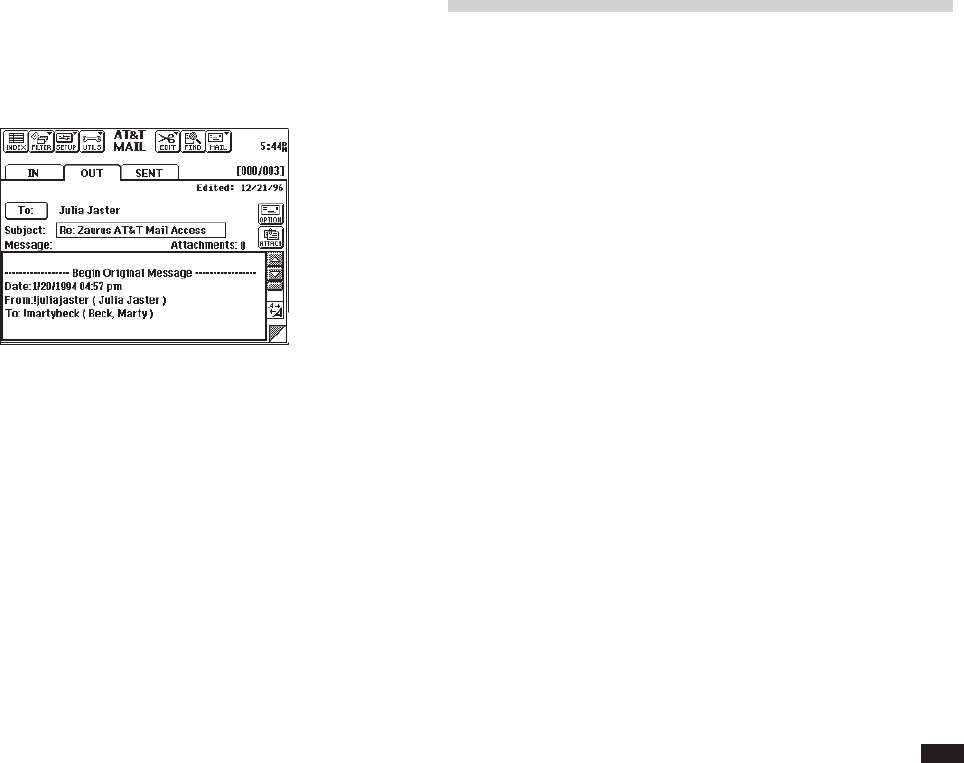
- AT&T Mail Access 227
- ZR-Pager 228
- Appendices 229
- - Enters a hyphen 231
- - Enters the symbol + 231
- B. Reset 234
- C. Troubleshooting 235
- D. Battery Replacement 236
- Replacing operating batteries 237
- E. Specifications 240
- Contents 256
- Communication Applications 258
- – CompuServe – 258
- – Pager Access – 259
- – AT&T Mail – 261
- – Terminal – 262
- Disclaimer and warnings 264
- Trademarks and copyrights 264
- About this manual 264
- Manual conventions 265
- Important things to do 265
- Spreadsheet 266
- Quick Start 268
- The worksheet name 269
- The cell 270
- The edit bar 270
- Entering formulas 271
- Scroll arrows 272
- Scroll bar 272
- The function appears 272
- “values...” is highlighted 272
- Editing data in a cell 273
- Creating a worksheet from a 273
- Selecting cells and ranges 274
- Select a cell or 275
- Navigating the worksheet 276
- Formatting cells 276
- Chart legend 277
- Introduction 280
- Selecting display modes 281
- Worksheet mode 282
- Chart mode 282
- Getting to know PenCell 283
- Keyboard Reference 284
- Creating a Worksheet 286
- Starting with a template 287
- Entering data 289
- Entering numbers 290
- Entering labels 291
- Selecting cells 292
- Function Reference 296
- Types of formulas 300
- About built-in functions 300
- Editing a worksheet 303
- Moving around a worksheet 304
- Finding cell contents 305
- Copying and moving data 305
- Copying formulas 308
- Clearing data 309
- Inserting and deleting cells 310
- Formatting a worksheet 311
- Cell characteristics 316
- Function Refer 318
- Touch OK 321
- Creating a chart 324
- Formatting a chart 325
- Pie charts 326
- Line charts 326
- Column charts 326
- Stacked column charts 326
- “Index” or “Charts....” 327
- Viewing saved charts 328
- Deleting a chart 329
- Managing Worksheets 330
- Managing worksheets 331
- Deleting worksheets 332
- Transferring worksheets 333
- Replacing with a PC File 336
- Linking a worksheet 337
- Setting the workspace size 338
- Troubleshooting 340
- Appendixes 342
- In Worksheet mode 344
- In Charts mode 346
- Arithmetic functions 347
- Date/time functions 349
- Financial functions 352
- Logical functions 355
- Miscellaneous functions 356
- Relational functions 358
- Statistical functions 358
- Trigonometric functions 359
- • Worksheet mode 362
- • Charts mode 362
- Before you start 368
- Connecting to a PC Card modem 369
- CompuServe 370
- Setting up your modem 373
- Setting up connections 373
- Connecting to CompuServe 374
- Creating Mail 375
- Sending Mail 376
- Getting Mail 376
- Reading Mail off-line 377
- Creating mail 384
- Sending mail messages 386
- Getting mail messages 387
- Going to a forum 389
- Downloading forum messages 391
- Downloading library files 392
- Appendix 398
- , icon 399
- Pager Access 402
- Setting up a paging service 407
- Composing a message 408
- Sending messages 409
- Getting messages from your 409
- Pager Card 409
- Reading incoming messages 410
- Searching messages 410
- Starting ZAURUS Pager Access 415
- Configuring your modem 418
- Using Pager Access 421
- Message folders 422
- Attaching data to a message 425
- Modifying a message 426
- Setting up an address book 427
- Messages containing errors 431
- Deleting messages in the unit 433
- Deactivating the filter 435
- Copying and moving text 437
- Customizing Pager Access 437
- Touch OK to save the changes 438
- AT&T Mail 444
- Creating a new message 448
- Receiving messages 450
- • Use Dialing Prefix 454
- • User Phone Number 454
- • Private Logo 454
- • File Transfer 454
- Control, Modem String 455
- • Redial 455
- • Volume 455
- User’s Guide 456
- Setting up the address book 457
- AT&T Mail User’s Guide 458
- Mail Basic 460
- Mail folders 461
- Addressing messages 463
- Address types 464
- Selecting message options 467
- Attachments 468
- Editing a message 469
- Connecting to the host 469
- • Configuring Modem 473
- • Logging into Host 473
- Viewing Received Messages 478
- Answering a message 481
- Forwarding a message 482
- Managing Your Messages 484
- Deleting messages 485
- ASIA, PACIFIC REGION 492
- AMERICAS REGION 493
- Appendix B: AT&T Mail 495
- AT&T Mail Direct 496
- REDI-ACCESS Packet (X.25) 496
- DATAPAC – DataPac in Canada 497
- LAS – Local Access Service 497
- Login Script Commands 498
- Terminal 500
- About directory settings 506
- Changing dial settings 507
- Using Terminal 508
- Hanging up 509
- Receiving a call 510
- On-line operations 511
- Data transfer 512
- Auto log-on 513
- Terminal emulation 514
- Terminal display setup 514
- ASCII Control Codes 517
Relacionado con productos y manuales para Tabletas Sharp ZAURUS ZR-5000

 (32 paginas)
(40 paginas)
(54 paginas)
(35 paginas)
(91 paginas)
(32 paginas)
(40 paginas)
(54 paginas)
(35 paginas)
(91 paginas)
© 2020, manymanuals.es. Todos los derechos reservados | 0.053 s |
 Manymanuals.com
 Manymanuals.de
 Manymanuals.fr
 Manymanuals.it
 Manymanuals.pl
 Manymanuals.cz
 Manymanuals.es
 Manymanuals-pt.com
Comentarios a estos manuales