Sharp ZQ-750M Instrucciones de operaciones
Busca en linea o descarga Instrucciones de operaciones para Tabletas Sharp ZQ-750M. Sharp ZQ-750M Operating instructions Manual de usuario
- Pagina / 35
- Tabla de contenidos
- MARCADORES

Indice de contenidos
Docking-Station CE- 61TModels : ZQ-570M, ZQ-630M, ZQ-640M, ZQ-650MCable: CE – 61TFor connection via a docking station, first remove the removable cove
3 Preparations3.1 InstallationInstallation under Windows 95/98After switching on your computer, wait until Windows 95/98 has finished loading. Nowinse
3.3.2 Registering a new OrganizerWith Organizer Link 4 the various SHARP Organizers can interoperate. You therefore need to tellOrganizer Link 4 which
Chapter 4.4 contains comprehensive instructions for data backup.Note:For maximum security, always make a copy of your file e.g. on a diskette. The fil
2 As the preparations for the transfer are now complete, select the menu option ‘Receive fromOrganizer’ in the ‘Link’ menu.3 With data transfer you ha
4 Working with Organizer Link 44.1 The user interface4.1.1 SummaryWhen the program is started, Organizer Link 4 initially displays the user interface
represented here as icons and each icon has a help function. If you move the mouse pointerover an icon, its name and function are briefly displayed.Ap
4.1.3 Main windowThe application window, which displayed all the data in the individual applications, takes arecentral position in the main window. It
The “Configure list” dialogue box has a menu on the left in which you can select the columnyou want to configure. Once you have clicked on the appropr
4.2 General function4.2.1 Register a new OrganizerBesides the data you have entered and the backups, an Organizer Link 4 file also contains specificin
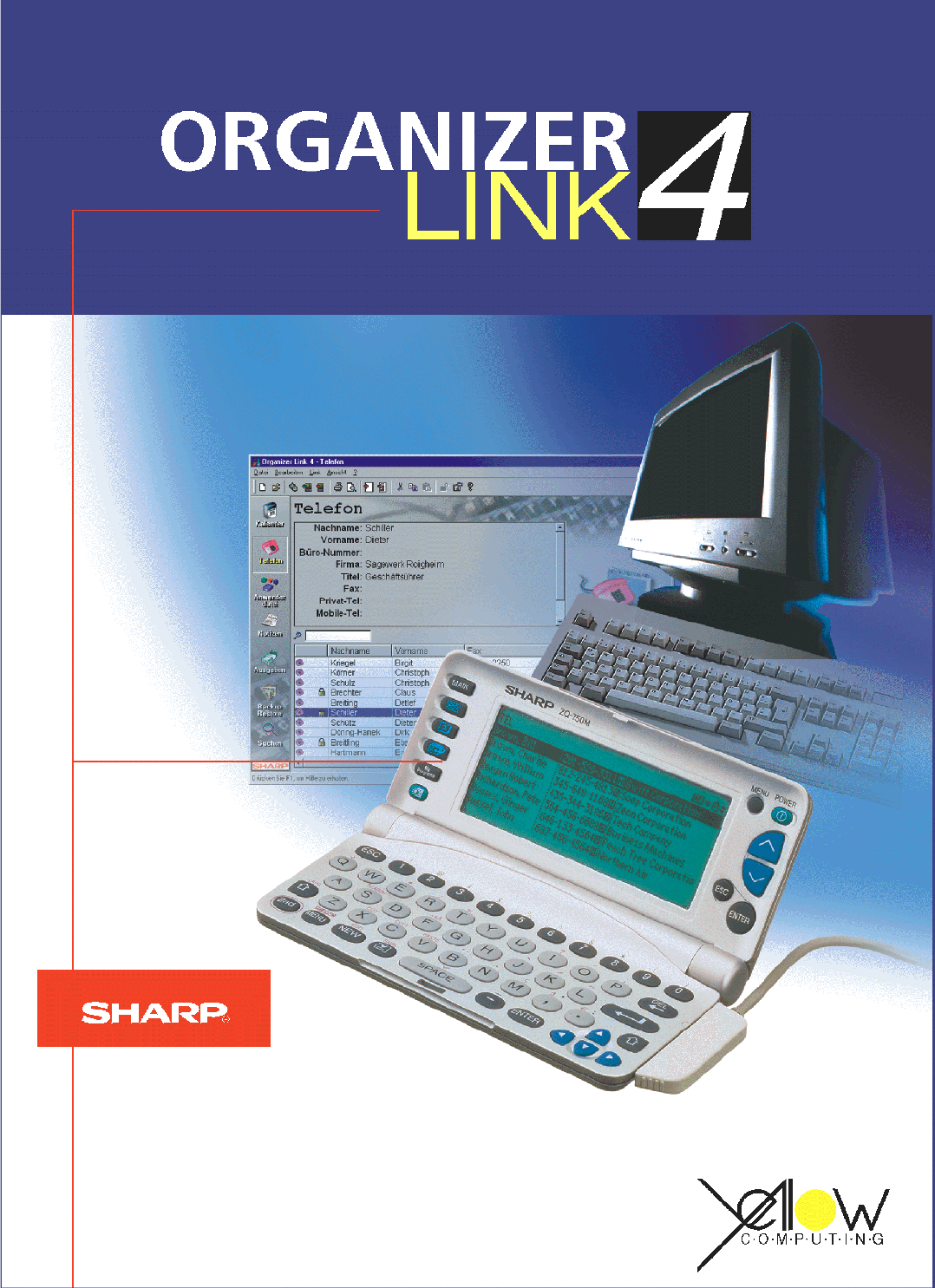
Operating InstructionsOrganizer Link 4from Version 2.0The computer link between SHARP Organizersand Personal Computerswith integrated data processinga
4.2.4 Deleting data recordsTo delete a record, select the appropriate entry in the list field by clicking on it once with themouse and then select ‘Cl
You can delete the password by deleting the characters (asterisks) in the appropriate textfield at the same place you set up the password.Using passwo
4.3 Functions and applications4.3.1 CalenderThe calendar in Organizer Link 4 resembles the one in your SHARP Organizer. Hence, once you havemoved to t
AppointmentsA date as well as a start, end and/or alarm time can be defined in the editor for everyappointment. Appointments are entered and edited vi
Note:An exception is the SHARP Organizers ZQ-700 and ZQ-750 which do not have a user data-base, only a telephone database.Both types of database are
Entering a new memo:1 Change to the ‘Memo’ function via the application bar.2 Click on the icon. The editor opens for entry of a new record.3 Enter
4 Enter the amount.5 If you wish, select the method of payment and the status of the expense and assign it to anycategory.6 Specify whether the record
In order to delete programs again, highlight the appropriate program in the list field and press the<Del> key on the keyboard. The programs are
The function is opened via the application bar. Select the [Backup/Restore] icon with the mouse, oralternatively you can select the ‘Backup/Restore’ m
Conflicts may arise during synchronisation e.g. if an appointment which has already been enteredand synchronised has been moved to different times on
Contents1 General ... 51.1 Introduction ...
4 If you choose the ‘Replace data’ option, note that the data previously stored on the Organizeris irreversibly overwritten!5 Start the data transfer
With the exception of the ‘Text’ (TXT/RTF), ‘Business card files’ (vCard) and ‘Calendar file’(vCALENDAR) data formats, you can assign the individual d
5 Appendix5.1 Link cableName Description ModelsLink cable 4-PIN cable ZQ – 700MZQ – 750MCE – 61T Docking-Station ZQ – 570MZQ – 630MZQ – 640MZQ – 650M5
Organizer Link 4335.4 IndexAAlarm time 23Application bar 15, 16Application window 15, 17, 18, 20, 32Appointments view 22CCancel editor 18Clipboar
Organizer Link 434TTo Do list 22VView field 17, 20, 24, 25WWeek view 22Windows 95/98 11Windows NT 11Word break 18, 24
Organizer Link 435NoteCopyright © 1999-2000 by Yellow Computing Computersysteme GmbH.The instructions and program are protected by copyright. They may
4.2 General function... 194.2.
1 General1.1 IntroductionCongratulations on purchasing Organizer Link 4, a powerful package which, together with a SHARPOrganizer, will open up the wo
1.4 Minimum PC requirements• Microsoft Windows 95 or higher or Microsoft Windows NT 4.0 / 2000• Pentium 60 MHz processor or faster• 16 MB RAM for Wind
1.6 Using online HelpOur online help will make it considerably easier for you to start working with the program, initiallyas an introduction and later
Operating the search functionEnter a keyword as search text in the text field. With each letter entered, online help will immediatelyattempt to find a
2 Connecting the link cable2.1 Connecting the SHARP Organizer to the PCCaution:Before you connect the link cable, you should always switch off your PC
Mas documentos para Tabletas Sharp ZQ-750M

Relacionado con productos y manuales para Tabletas Sharp ZQ-750M
 (91 paginas)
© 2020, manymanuals.es. Todos los derechos reservados | 0.028 s |
 Manymanuals.com
 Manymanuals.de
 Manymanuals.fr
 Manymanuals.it
 Manymanuals.pl
 Manymanuals.cz
 Manymanuals.es
 Manymanuals-pt.com
Comentarios a estos manuales