Sharp MX-2300N Guía de inicio rápido Pagina 126
- Pagina / 207
- Tabla de contenidos
- SOLUCIÓN DE PROBLEMAS
- MARCADORES

- Quick Start Guide 1
- Manuals in PDF format 3
- Opening the Web pages 4
- Checking the IP address 4
- TABLE OF CONTENTS 6
- Document filing 7
- System settings 7
- General information 9
- PART NAMES AND FUNCTIONS 10
- Interior 11
- Peripheral devices 11
- OPERATION PANEL 12
- USING THE TOUCH PANEL 14
- USER AUTHENTICATION 15
- PLACING ORIGINALS 16
- CHANGING PAPER IN A TRAY 17
- Changing the tray settings 18
- Names of the trays 19
- Other trays 20
- MAKING COPIES 22
- Cancel copying 23
- Correct sets 23
- Place the originals 24
- Selecting a tray 25
- SELECTING THE EXPOSURE MODE 26
- Place the original 27
- Ratios / Zoom) 29
- INTERRUPTING A COPY RUN 31
- (Interrupt Copy) 31
- STORING COPY OPERATIONS 32
- (Job Programs) 32
- Calling up a job program 33
- Deleting a job program 33
- (4) Touch the [Exit] key 34
- SPECIAL MODES 35
- SELECTING A SPECIAL MODE 36
- CONVENIENT COPY FUNCTIONS 37
- Original Tab paper 39
- Planning Meeting 40
- Green G+ 41
- (Suppress Background) 42
- (Mixed Size Original) 43
- Printing 45
- Printing begins 47
- [OK] button 47
- CANCELING A PRINT JOB 48
- USING PRINTER DRIVER HELP 49
- PRINTER DRIVERS 50
- Open the printer driver 51
- Select print settings 51
- CONVENIENT PRINTER FUNCTIONS 52
- (Black and White Print) 53
- PRINTING FROM A MACINTOSH 54
- Printing a file 55
- Scanning 57
- NETWORK SCANNER FUNCTION 58
- Original 59
- Scanned image 59
- CHANGING THE RESOLUTION 61
- SELECTING THE EXPOSURE AND 62
- EXPOSURE MODE 62
- CHANGING THE FILE FORMAT 63
- STORING A DESTINATION 64
- Storing a group key 65
- One-touch key 68
- Resending 68
- Speed sending 69
- SPECIAL SCAN MODES 70
- SCANNER FUNCTION 71
- Custom Folder 76
- Main Folder 76
- Quick File Folder 76
- QUICKLY SAVING DOCUMENT DATA 78
- (Quick File) 78
- APPENDING INFORMATION WHEN 79
- STORING A FILE (File) 79
- & WHITE START] key 80
- DOCUMENT 81
- PRINTING A SAVED FILE 82
- SYSTEM SETTINGS 84
- Please note 85
- Software Setup Guide 86
- SOFTWARE LICENSE 87
- BEFORE INSTALLING THE 89
- SOFTWARE 89
- • PC-Fax driver 90
- • PPD file 90
- OTHER CD-ROMS 91
- VERIFYING SYSTEM REQUIREMENTS 92
- DRIVER REQUIREMENTS 93
- CONNECTING THE MACHINE 94
- SETUP IN A WINDOWS 95
- USB CABLE 102
- ☞ CHANGING THE PORT (page 42) 106
- (2) Click the [Next] button 108
- DRIVER (Windows 98/Me/NT 4.0) 109
- [Printers and Faxes] 110
- (2) Click the [OK] button 111
- INSTALLING THE SCANNER DRIVER 115
- SETUP IN A MACINTOSH 117
- ENVIRONMENT 117
- Configure the printer driver 119
- Display printer information 119
- MAC OS X (v10.2.8) 120
- (1) Select [AppleTalk] 121
- (3) Select [Sharp] 121
- (5) Click the [Add] button 121
- MAC OS X (v10.1.5) 123
- (3) Select [Other] 124
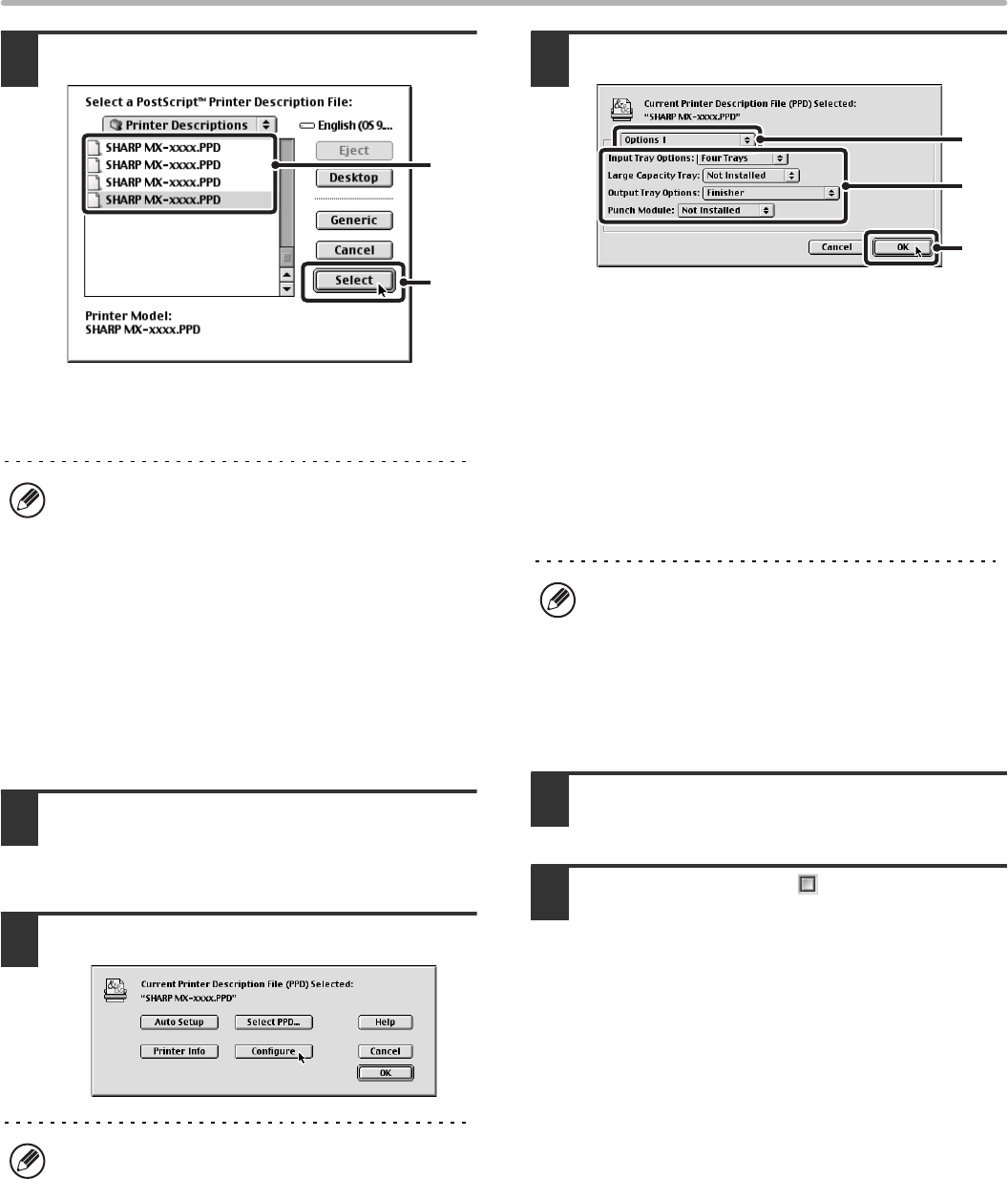
- MAC OS 9.0 TO 9.2.2 125
- USEFUL INFORMATION 127
- CHANGING THE PORT 129
- (4) Click the [OK] button 130
- Sharpdesk 131
- Table of Contents 132
- Software Programs 133
- Installing SHARP TWAIN AR/DM 137
- FACSIMILE EXPANSION KIT 138
- CAUTION: 139
- Using the fax function 140
- SENDING A FAX 141
- SELECTING THE RESOLUTION AND 142
- EXPOSURE 142
- Changing the exposure 143
- Cancel scanning 144
- Correct a mistake 144
- STORING A FAX NUMBER 145
- (Continued) 148
- 0120000001 149
- 0120000000 149
- [Yes] key 150
- FORWARDING RECEIVED FAXES 151
- (Fax Data Forward) 151
- CONVENIENT DIALING METHODS 152
- Speed dialing 153
- Dialing using the speaker 153
- SPECIAL FAX MODES 154
- Transmission 157
- Troubleshooting 158
- Telephone line jack 160
- PROBLEMS RELATED TO RECEPTION 162
- INDIVIDUAL KEYS / GROUP KEYS 164
- Specifications 165
- SPECIFICATIONS 166
- Important safety information 167
- FCC Notice to users: 168
- NOTICE FOR USERS IN 169
- AVIS POUR NOS 169
- UTILISATEURS AU CANADA 169
- ABOUT THIS MANUAL 171
- Printed manuals 172
- REMOVING MISFEEDS 173
- PRINTING 180
- ☞ Software Setup Guide 181
- ☞ INSTALLATION (page 24) 181
- SCANNING 186
- Group Keys 191
- DOCUMENT FILING 192
- INSTALLATION 194
- Removing the software 196
- OTHER PROBLEMS 197
- ☞ REMOVING MISFEEDS (page 3) 199
- Other Problems 205
- Illustration of the machine 206
Relacionado con productos y manuales para Multifuncionales Sharp MX-2300N
 (12 paginas)
(34 paginas)
(56 paginas)
(12 paginas)
(6 paginas)
(2 paginas)
(2 paginas)
(2 paginas)
(1 paginas)
(2 paginas)
(1 paginas)
(12 paginas)
(34 paginas)
(56 paginas)
(12 paginas)
(6 paginas)
(2 paginas)
(2 paginas)
(2 paginas)
(1 paginas)
(2 paginas)
(1 paginas)
 (8 paginas)
(1 paginas)
(2 paginas)
(60 paginas)
(8 paginas)
(1 paginas)
(2 paginas)
(60 paginas)
© 2020, manymanuals.es. Todos los derechos reservados | 0.058 s |
 Manymanuals.com
 Manymanuals.de
 Manymanuals.fr
 Manymanuals.it
 Manymanuals.pl
 Manymanuals.cz
 Manymanuals.es
 Manymanuals-pt.com
Comentarios a estos manuales